Your First Project
The editor opens the courtyard example on first launch: a walled yard with crates, a platform, three lights and a player start. It is a complete scene, so Play works straight away.
Work on a copy
The example lives inside the editor folder (examples/courtyard), and updating the editor replaces it. Before you change it, copy the courtyard folder somewhere of your own, then File > Open... (Ctrl+O) and pick courtyard.scene in the copy.
To start from nothing instead, use File > New Project... (Ctrl+N) and pick an empty folder. The editor creates meshes/, textures/ and scripts/ in it and an empty scene named after the folder.
A project is just a folder: one or more .scene files (JSON) and the meshes, textures, scripts and sounds they use, all referenced by paths relative to the folder. Scenes, meshes and block scripts are JSON text, so a project sits well in git.
Find your way around
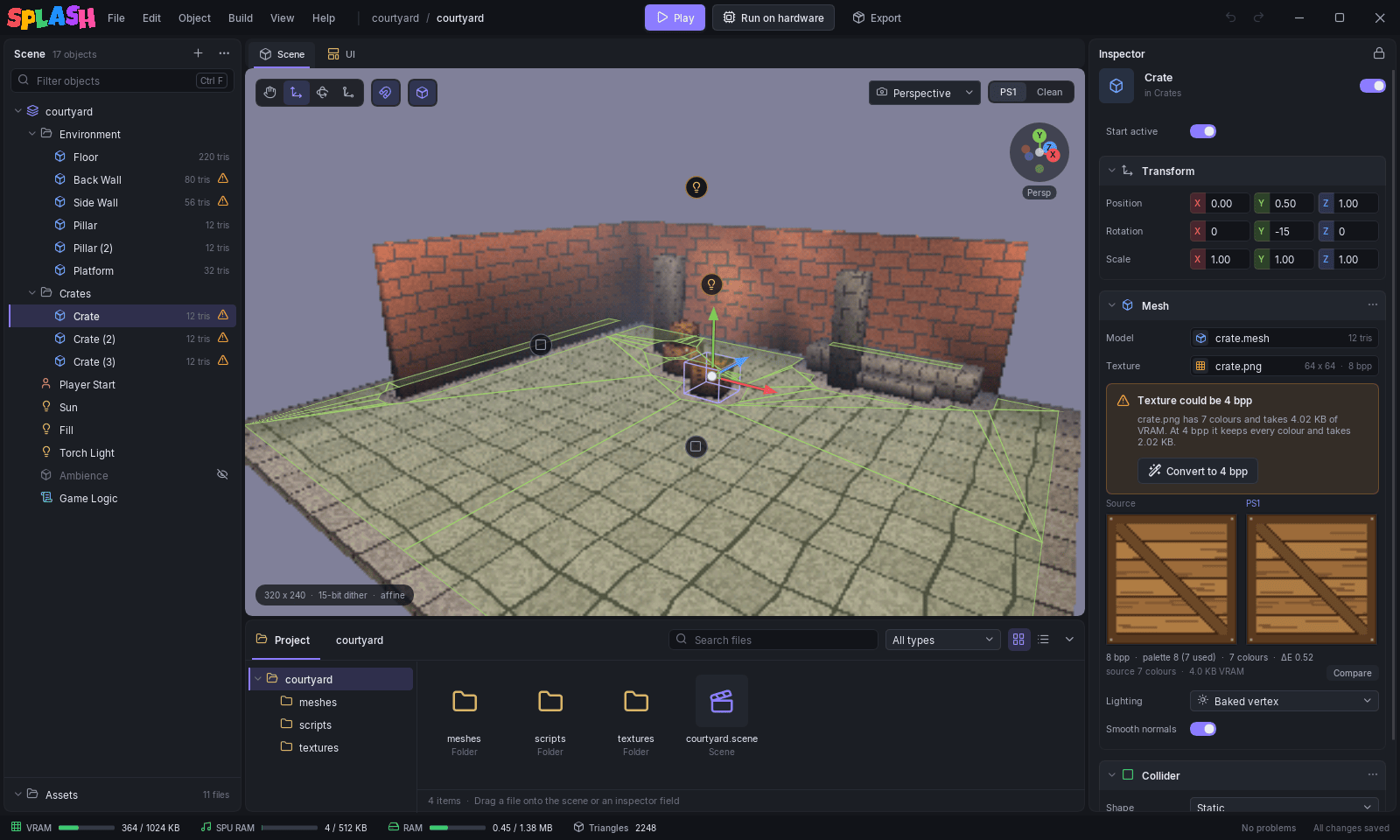
- Scene (left): every object in the scene as a tree. Click to select, double-click to frame, drag to reparent, F2 to rename. The number after a mesh is its triangle count; a warning sign means the inspector has a suggestion.
- Viewport (middle): the scene drawn at 320x240 with 15-bit colour, dithering and affine texture warping, as the console draws it. Switch to Clean at the top right for a plain view.
- Inspector (right): the selected object's components. With nothing selected it shows the scene's settings.
- Project (bottom): the project folder. Drag a file onto the viewport, the scene tree or an inspector field to use it.
- Status bar: VRAM, SPU RAM, main RAM and triangle counts for the scene as it would export right now.
The interface tour covers each panel in detail.
Move around the viewport
| Input | Does |
|---|---|
| Right mouse drag | Look around |
| Right mouse + W A S D, Q / E | Fly; the wheel changes the speed while flying |
| Middle mouse drag | Pan |
| Mouse wheel | Move in and out |
| Alt + left drag | Orbit |
| Alt + right drag | Zoom |
| F | Frame the selection |
Change something
- Click Crate in the scene tree. The viewport shows a move gizmo on it.
- Drag the green arrow up, or type a new Y under Transform > Position in the inspector.
- The inspector shows "Texture could be 4 bpp":
crate.pnghas only 7 colours. Click Convert to 4 bpp. The VRAM meter in the status bar drops. - Press Ctrl+S to save.
Every edit is one undo step: Ctrl+Z undoes, Ctrl+Y redoes.
Add an object
- Click + at the top of the Scene panel, or Object > Add Object... (Ctrl+A).
- Pick Point light. It appears in front of the camera.
- Move it near a wall and set its Colour and Range in the inspector. The PS1 view shows the new baked lighting on the walls around it.
Objects are built from components. Add component at the bottom of the inspector adds more: a Collider, a Script, a Trigger box and so on. See Objects & Components.
Add a script
- Select Game Logic. Its Script component points at
scripts/game_logic.lua. - Click Edit script. The file opens in a tab next to Scene, in the Lua editor.
- To script with blocks instead, add a Script component to another object and click New blocks; New Lua makes a Lua file. Both are covered in The Block Editor and The Lua Editor.
Play it
Press Play in the title bar (F5). The editor exports the scene, boots it in pcsx-redux and shows the game next to the scene view. Click the game to give it the keyboard, then walk with the arrow keys.
Next: Play, Hardware and Discs.