Materials & Bit Depth
A mesh has one material per submesh. Each material is a Texture (a PNG) and a Colour. With a texture, the colour is not shown in the inspector; without one, the material is that flat colour.
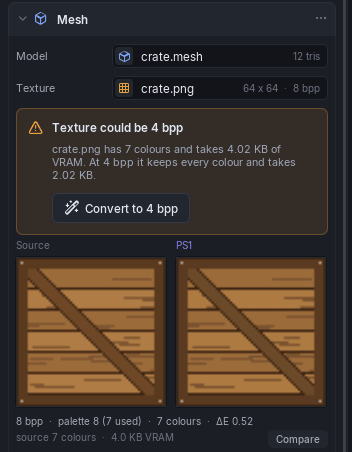
Texture bit depth
VRAM is 1 MB and every texture lives there, so bit depth is the biggest lever you have.
| Depth | Colours | VRAM per texel | Notes |
|---|---|---|---|
| 4 bpp | 16 | 4 bits | Needs a 16-entry palette (a CLUT). Smallest. |
| 8 bpp | 256 | 8 bits | Palette of 256. The default for new meshes. |
| 16 bpp | 32768 | 16 bits | No palette; 15-bit colour. Largest. |
The depth is per mesh component. The inspector shows it next to the texture's size, for example 64 x 64 · 8 bpp. Compare under the preview flips between the source and the PS1 result.
The 4 bpp suggestion
When every texture on a mesh has 16 colours or fewer, and 4 bpp would use less VRAM, the inspector shows a card:
Texture could be 4 bpp: crate.png has 7 colours and takes 4.02 KB of VRAM. At 4 bpp it keeps every colour and takes 2.02 KB.
Convert to 4 bpp applies it in one undo step. The scene tree marks the object with a warning sign until you do. The suggestion never appears for textures with more than 16 colours; those would lose colour at 4 bpp, and the PS1 preview under the texture field shows exactly how much.
To change the depth the other way, set Bit depth for new objects in the model's import settings and re-place the model.
Mesh colours and lighting
Lighting on a mesh picks where its vertex colours come from:
| Option | Meaning |
|---|---|
| Baked vertex | Light from the scene's lights is baked into the vertices at export. Costs nothing at runtime. |
| Flat | One flat colour. |
| Mesh colours | The colours stored in the model file. A model with none shows flat grey (127, 127, 127), and the inspector says so with a Use baked lighting fix. |
Smooth normals (Baked vertex only) bakes the lighting as if the surface were smoothly curved. Off keeps the model's own normals, for hard edges.
Limits worth knowing
- Textures are at most 256 x 256; larger images are scaled down on import.
- All of a scene's textures share VRAM with two framebuffers and the font column. The VRAM meter in the status bar shows the total; the scene settings' VRAM layout shows where each atlas sits and lets you reserve areas.
- Several materials on one mesh each take their own texture.
See Memory & Performance.