Importing Models & Textures
Models
The editor reads glTF (.gltf, .glb), FBX and OBJ (with its .mtl) directly, and .blend through Blender (see Installation).
To bring a model in, drop the file on the viewport, on a row in the Scene tree (it becomes a child of that row), or into the Project panel. Choosing a model in a Mesh component's Model field works too. The editor copies the file into the project's models/ folder, if it is not already there, and writes:
| File | What it is |
|---|---|
models/<name>.mesh |
The whole model baked into one mesh, one submesh per material |
models/<name>/<node>.mesh |
One mesh per node of the model, for placing the parts as separate objects |
models/<name>_<n>.png |
The base colour textures its materials use |
models/<name>/<clip>.anim |
One file per animation in the file, for skinned models |
models/<name>.<ext>.import.json |
The import settings, beside the source file |
Textures larger than 256 texels on a side are scaled down to fit a PS1 texture page. A texture the importer cannot find is a warning, not an error.
Import settings
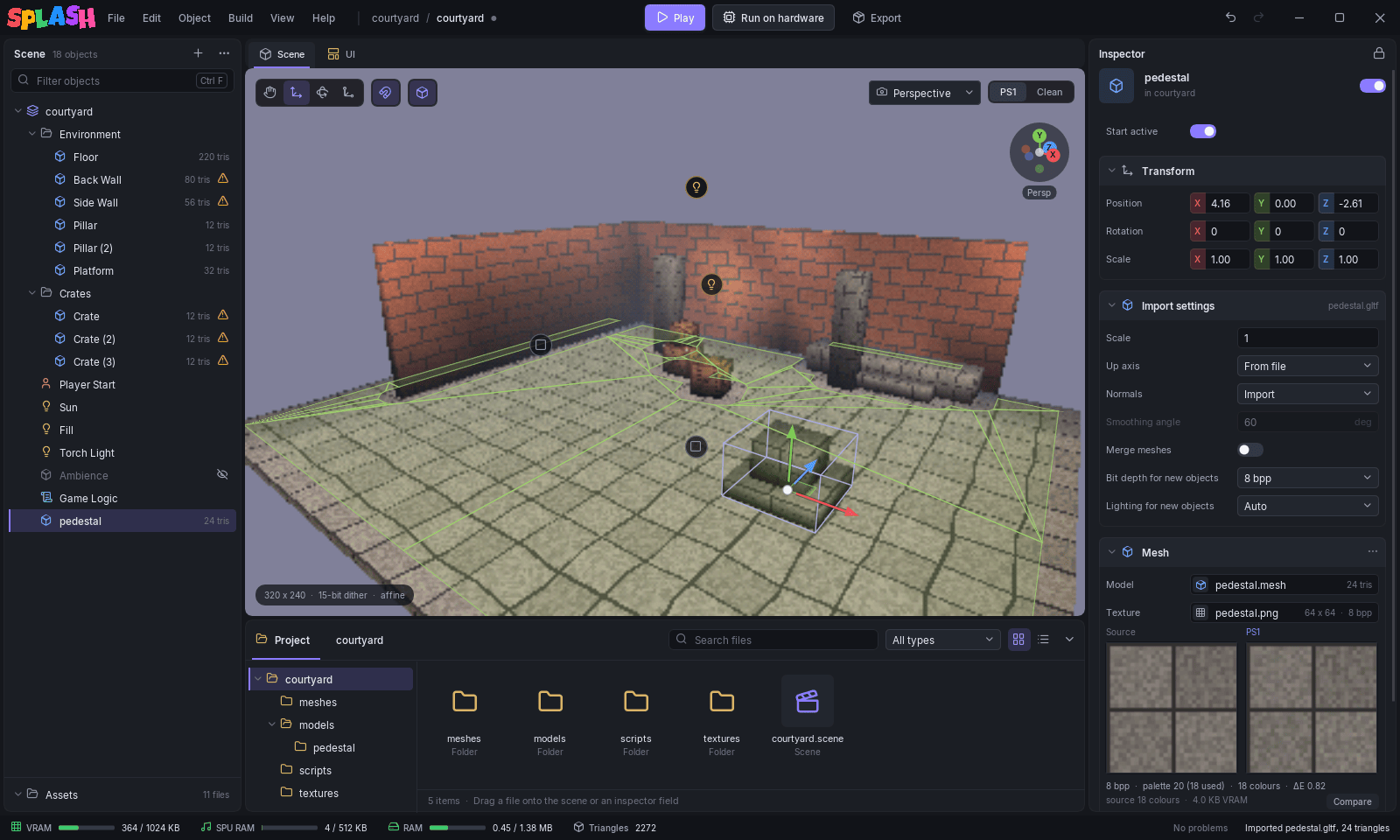
Select a model file in the Project panel and the inspector shows its Import settings. Each change re-imports the model and every copy placed in the scene.
| Setting | Effect |
|---|---|
| Scale | Multiplies the model's size. 1 keeps the size in the file, in metres. |
| Up axis | From file believes the file. Y up or Z up overrides it, for a model that comes in lying on its back. |
| Normals | Import keeps the file's normals (flat shading where it has none). Recompute works them out from the faces. |
| Smoothing angle | With Recompute: faces meeting at less than this angle are shaded smooth across the edge. |
| Merge meshes | On: each placed copy is one object drawing a single mesh. Off: the file's parts become child objects. |
| Bit depth for new objects | The texture bit depth of objects made from this model from now on. |
| Lighting for new objects | Whether runtime lights light these objects; see Lighting. |
Merging objects also cuts the RAM each object costs at load. A scene with over a thousand objects can run out of RAM on object count alone, and the scene settings then offer to select the biggest group. Merge meshes is the fix.
Every warning from the last import is listed under the settings with a suggested fix.
Textures
Textures are PNG files. Assign one in a Mesh component's Texture field (one per material) by clicking the field and picking a file, or by dragging it from the Project panel. The editor converts it to PS1 colours on export.
Under the texture field, a preview shows the Source next to the PS1 result, with the bit depth, palette size, colour count and an error figure. If the PS1 version looks wrong, this is where you see why before you press Play.
See Materials & Bit Depth for what 4, 8 and 16 bpp cost.