Cutscenes & Animations
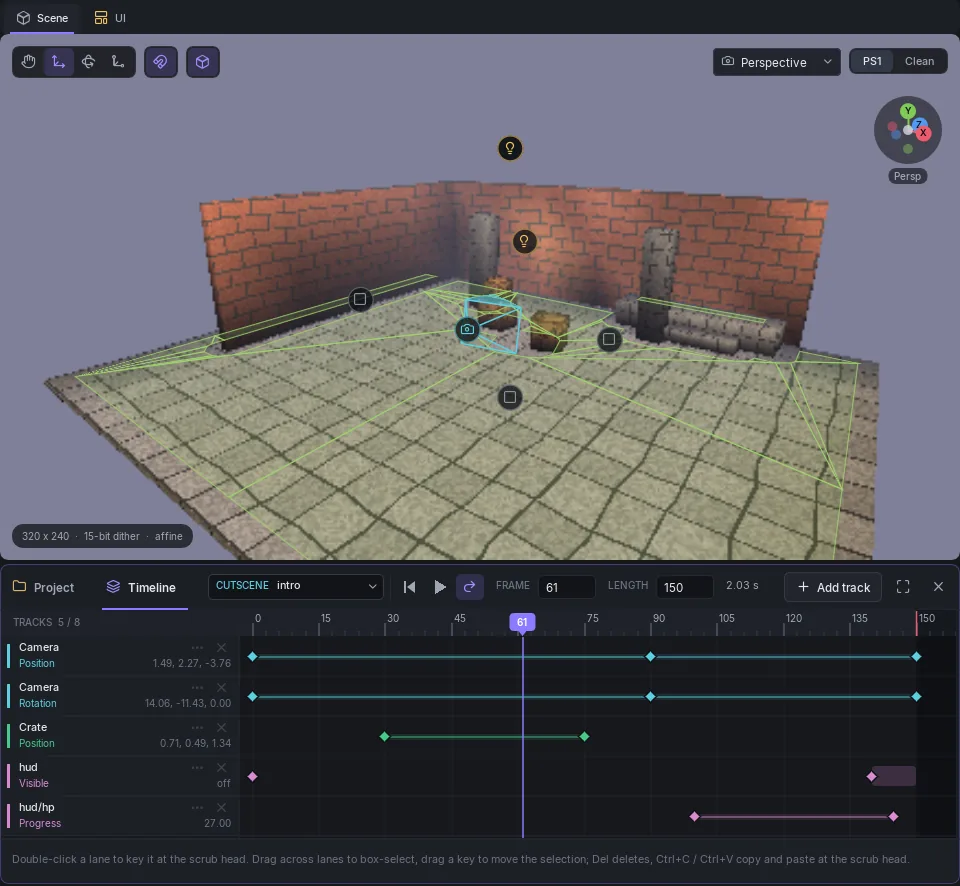
The Timeline panel animates a scene: moving the camera, objects and lights, showing and hiding UI, filling a progress bar, playing sounds and skinned-mesh clips, rumbling the controller. It docks as a second tab beside the Project panel.
There are two kinds of sequence, built the same way:
| Cutscene | Animation | |
|---|---|---|
| Played from Lua with | Cutscene.Play(name) |
Animation.Play(name) |
| At a time | One | Up to 8 |
| Camera tracks | Yes | No |
| Audio events | Yes | No |
Use a cutscene for a scripted moment that takes over the camera. Use animations for things in the world: a door swinging, a lift, a pulsing light.
Opening and creating
Open the panel from View > Timeline (it lists every cutscene and animation), or press Edit in timeline next to a sequence in the scene settings under Cutscenes and animations. New cutscene and New animation create one. Double-click the name to rename it; Lua plays it by that name. Names are 1 to 24 characters.
The panel
The top bar has the sequence picker (CUTSCENE or ANIMATION and its name), Back to frame 0, Play / Pause (Space), Loop, the current Frame, the Length in frames and its time in seconds, Add track and a button to fit the whole length in the panel. Frames run at 30 per second.
Below, the tracks run down the left and time runs across. The red line is the scrub head. Click or drag in the ruler to scrub: the Scene view poses the cameras, objects, lights and UI at that frame, and restores everything when you stop. Nothing is changed in the scene itself.
Tracks
Add track asks for a property and a target. A track drives one property of one target.
| Group | Properties | Target |
|---|---|---|
| Camera | Position, Rotation, H (field of view) | none (cutscenes only) |
| Object | Position, Rotation, Active, UV Offset | An object with a mesh |
| UI | Canvas Visible, Element Visible, Progress, Position, Colour | A canvas, or canvas/element |
| Light | Position, Colour, Intensity, Radius, Enabled | An object with a runtime light |
| Rumble | Small motor, Large motor | none |
A sequence has at most 8 tracks, with 64 keys on each. The count shows as TRACKS 5 / 8. Object and light positions must stay within 8 x the scene's GTE scaling of the origin. A track's right-click menu has Remove track and Drive instead, which points the track at another target.
Keys
- Double-click a lane to put a key at the scrub head.
- Drag a key to move it. Drag across lanes to box-select; dragging one moves the selection. Del deletes it.
- Ctrl+C and Ctrl+V copy keys and paste them at the scrub head.
- Select a key and the row at the bottom of the panel shows its VALUE and its CURVE: the interpolation from the previous key into this one, Linear, Step, In, Out or In-out. On/off tracks hold each key until the next.
Audio and skin events (cutscenes)
Cutscenes also have an EVENTS lane. Audio event plays an audio clip by name at a frame, with a volume and a pan. Skin clip event starts a clip on a skinned object at a frame, looping or not. Animations take skin clip events but no audio.
A cutscene holds at most 64 audio events and 16 skin events, and a scene at most 16 cutscenes.
From a script
In the block editor, play cutscene does the same. See the Cutscene and Animation APIs.
Export checks
An export stops with an error when a track targets an object, canvas, element or clip that does not exist, or when an animation holds a camera track or an audio event.