UI Canvases
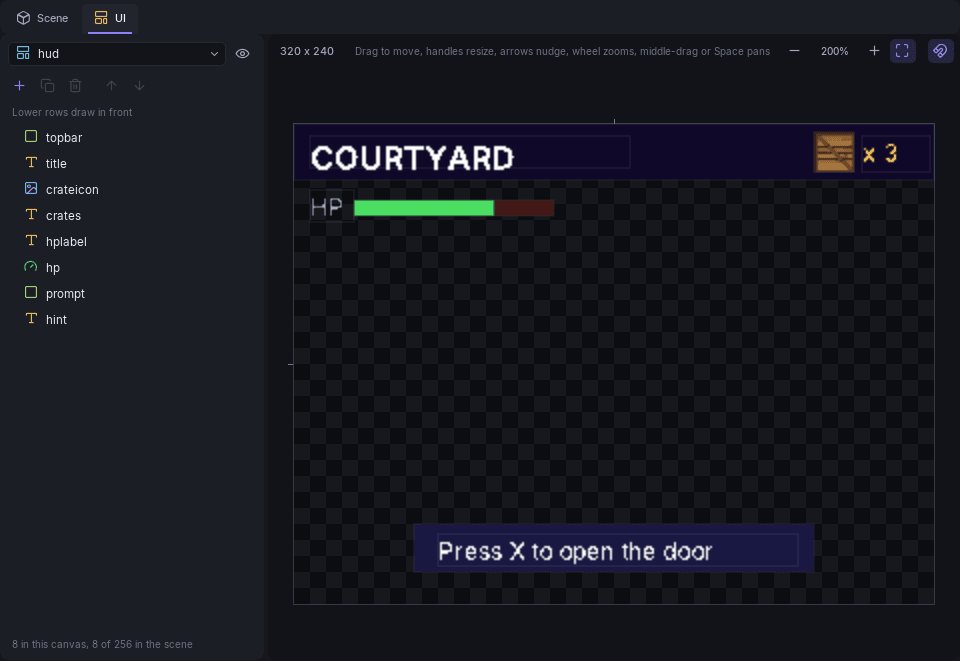
A canvas holds the HUD, menus and prompts drawn over the game. The UI tab next to Scene edits them at PS1 resolution (320 x 240), so what you place is where it lands on the console.
A scene can have up to 24 canvases and 256 elements in total (255 in one canvas).
The tab
- Canvas picker (top left): the canvas being edited. The menu has New canvas and Delete this canvas; the eye next to it sets whether the canvas is visible when the scene starts.
- Element list: the canvas's elements. Lower rows draw in front. Use + to add an element, the copy and trash buttons to duplicate and delete, and the arrows to change the order (Ctrl+[ sends backward, Ctrl+] brings forward).
- Canvas view: the screen. Drag an element to move it, drag its handles to resize it, nudge with the arrow keys. The wheel zooms, middle-drag or Space+drag pans, Ctrl+1 is 100%, Ctrl+0 fits. Ctrl+C, Ctrl+X, Ctrl+V and Ctrl+D copy, cut, paste and duplicate. Hold Ctrl to toggle snapping while dragging.
- The inspector shows the selected element's properties, with its name at the top (F2 renames the selected row too). With no element selected it shows the canvas's own: its name, Visible and Sort order.
Elements
| Element | Draws |
|---|---|
| Box | A solid rectangle |
| Text | A line of text: ASCII, at most 63 bytes |
| Image | A texture from the project |
| Progress bar | A bar filled from 0 to 100 |
| Line | A line between two points, with a handle at each end |
All elements have a Name (what Lua and timeline tracks find them by), Visible, Position and Size in pixels, an Anchor (what the position stays relative to if the screen size changes; stretched sides follow both edges) and a Colour.
Per type:
- Text has the Text itself and a Font: the built-in system font (8 x 16, fixed width), or one of the scene's fonts. Fonts live in the scene file; see the scene format notes in the editor's repository. At most 3 fonts per scene. A font with Grey levels on keeps up to 15 shades of grey instead of only white: a bitmap font's brightness, or a TrueType font's antialiasing. The text colour still tints them, and the font takes one more row of VRAM for its palette.
- Image has a Texture (Browse copies a file from outside the project into
textures/), Native size, Bit depth (4 and 8 bpp use a palette and less VRAM) and Cutout (transparent texels, alpha under half, are left out instead of drawn black). Set Sheet to one of the scene's sprite sheets and the Image shows a single cell instead: click the cell in the picker, and Snap size sets the size to one cell. Renaming the sheet carries the Images along. A Colour of#808080draws the texture as it is; brighter values brighten it, up to double at white. - Progress bar has a Value, 0 to 100.
Canvases
Visible is whether the canvas shows when the scene starts. Sort order runs from 0 at the back to 255 in front; canvases with higher orders draw over lower ones.
Driving the UI
From Lua, find a canvas and an element by name, then change them:
local hud = UI.FindCanvas("hud")
local bar = UI.FindElement(hud, "hp")
UI.SetProgress(bar, 75)
UI.SetText(UI.FindElement(hud, "crates"), "x 3")
Timeline tracks can also animate an element's visibility, position, colour and progress. See the UI API.
Prompts and loading screens
- An Interactable can show a canvas as its prompt while the player is in range. The canvas name must fit in 15 characters.
- A canvas can be the scene's loading screen. The progress bar on it must be named
loading.