The Block Editor
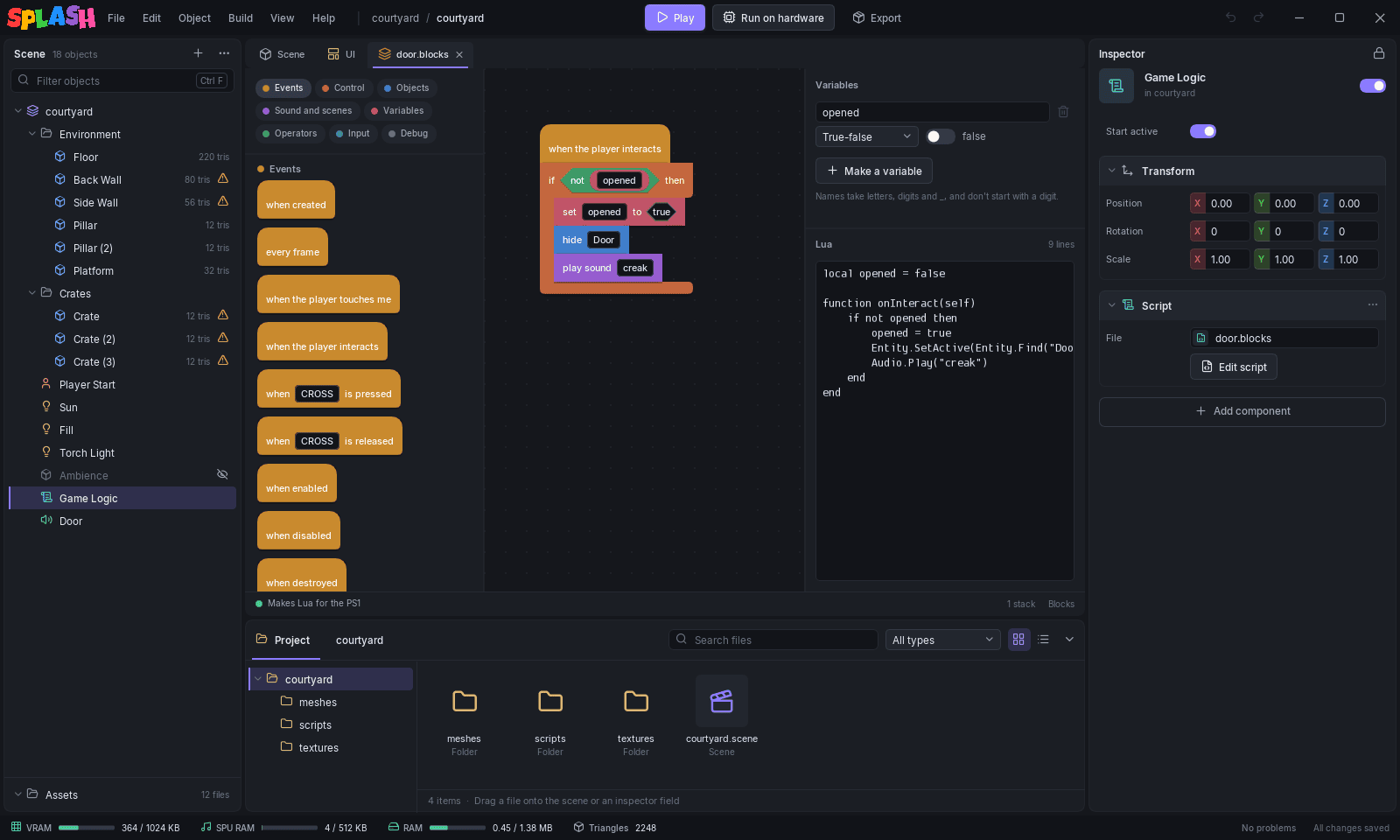
Blocks are a second way to write the same scripts. You snap blocks into stacks, and the editor writes the Lua for the console when the scene exports. Blocks and Lua are equals: use either, or mix them, even on one object. Blocks suit logic that is a chain of events and actions. Lua suits anything with tables, loops over data or the parts of the API blocks do not cover.
A blocks file is scripts/<name>.blocks, JSON text that diffs well in git. It goes anywhere a .lua file goes: an object's Script, a Trigger box script, or the scene script.
Making and opening a block script
- On a Script component, New blocks writes
scripts/<object name>.blockswith a when created stack and opens it. Edit script reopens it later. - Double-click a
.blocksfile in the Project panel. - The scene script has the same buttons in the scene settings; its starting stack is when the scene starts.
The editor
Left to right:
- Palette. Category chips at the top (Events, Control, Objects, Sound and scenes, Variables, Operators, Input, Debug) and the blocks of the chosen category below. Hover a block to read what it does.
- Canvas. Drag blocks out of the palette and drop them here.
- Variables and Lua, on the right. The Lua panel shows the generated code as you build, with its line count, and lists anything that keeps it from running.
The status line says Makes Lua for the PS1. Ctrl+S saves, Ctrl+Z and Ctrl+Y undo and redo. Drag a block back to the palette (the canvas shows Drop to delete) or press Delete to remove it.
Stacks, hats and inputs
A stack is a column of blocks. It starts with a hat block from Events; nothing runs until a stack starts with one. Statements snap under it, and a stack without a hat is loose and makes no code. Two stacks with the same hat are merged into one function, in the order they sit.
Rounded and pointed blocks (Operators, Variables, positions) are values. Drop them into the slots of other blocks: if takes a pointed true/false block, move ... by takes three numbers. Click a field in a block to type or pick a value: an object (self or any object in the scene), a controller button, a sound clip or a cutscene.
Blocks
| Category | Blocks |
|---|---|
| Events | when created, every frame, when the player touches me, when the player interacts, when button is pressed, when button is released, when enabled, when disabled, when the scene starts, when the player enters the trigger, when the player leaves the trigger |
| Control | wait n seconds, if, if/else, repeat, while, repeat until, wait until, stop this script |
| Objects | show, hide, move by, move to, x/y/z position of, start particles, stop particles, burst particles |
| Sound and scenes | play sound, play cutscene, load scene |
| Variables | set, change by, and a block for each variable |
| Operators | numbers, text, true/false, + - * /, mod, pick random, join, = < >, and, or, not |
| Input | button held? |
| Debug | log, frame count |
The event hats are the same events as in Lua: when created is onCreate, when the player interacts is onInteract, and so on. See Event Callbacks. wait blocks pause the stack and let the rest of the game run.
Variables
Make a variable in the Variables panel, type its name and pick its kind: Number, True-false or Text. A variable belongs to this script. Names take letters, digits and _ and cannot start with a digit; names that would clash with Lua keywords, the API tables or the event function names are refused.
Numbers with decimals are fine in blocks. The generated Lua writes 0.5 as a fixed-point value for you; see Fixed-Point Math.
Convert to Lua
Right-click the script's tab and pick Convert to Lua... to turn a blocks file into a Lua file. Every reference to the script follows. It is one way: the editor cannot turn Lua back into blocks, though Ctrl+Z undoes the conversion. Do it when a script outgrows blocks.
What blocks do not cover
Blocks cover the events and actions in the table above. Everything else in the API, tables, and your own functions are Lua. Block scripts and Lua scripts in one scene work side by side.