The Editor
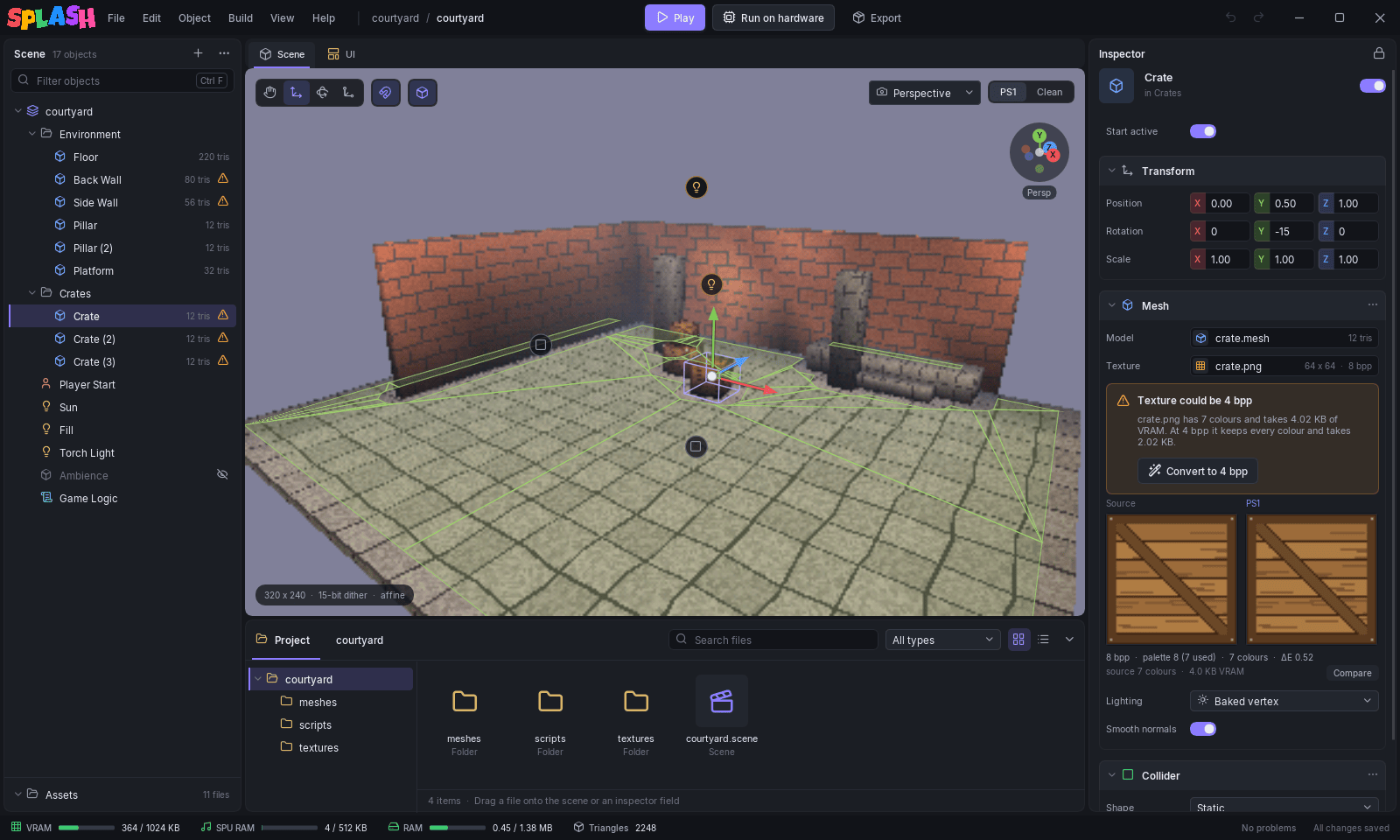
The window has five areas: the title bar with the menus and the run buttons, the Scene panel, the middle panel (viewport, script tabs and UI), the Inspector, and the status bar. The Project panel docks under the middle panel.
Title bar
File, Edit, Object, Build, View and Help menus, then the project and scene name (a dot after it means unsaved changes), then Play, Run on hardware and Export, and undo/redo.
| Menu | Holds |
|---|---|
| File | New Project, Open, recent scenes, Save, Save As, Quit |
| Edit | Undo, Redo, Rename, Duplicate, Cut, Copy, Paste, Delete, Select None |
| Object | Add Object, Add Component, Frame Selection (F), Align with View (Ctrl+Shift+F) |
| Build | Play, Run on Hardware, Export Disc Image, and the two debug overlays |
| View | Transform tools, PS1 Look / Clean Look, Snap, Orthographic, the scene's scripts, the Project panel, and the Timeline with every cutscene and animation |
| Help | Documentation, Report a Problem |
Save As keeps the scene inside the project folder, since every path in it is relative to that folder.
Scene panel
The scene as a tree of objects. The header shows the object count; + adds an object and ... has more.
- Click to select. Double-click frames the object in the viewport.
- Drag rows to reorder or reparent. Drop a model file on a row to import it as a child.
- Ctrl+F filters the tree by name.
- Right-click for Rename, Duplicate, Cut, Copy, Paste, Delete, Move to Top Level, Frame in View and Pin in Inspector.
Each mesh row shows its triangle count. A warning sign means the inspector has a problem or a suggestion for that object. A crossed-out eye marks an object that starts inactive.
The tree is for organising. At export the hierarchy is flattened into world positions, so moving a parent from Lua does not move its children. See Entity.SetParent to attach objects at runtime.
Viewport
The toolbar at the top left picks the transform tool: Hand (Q), Move (W), Rotate (E) and Scale (R). Next to them:
- Snap to a 0.25 m grid. With snap off, hold Ctrl while dragging to snap.
- Overlays: trigger boxes, interaction radii and navigation regions.
At the top right, Perspective / Orthographic and the view mode:
- PS1 draws the scene the way the console will: 320x240, 15-bit colour with dithering, affine texture mapping, the exported vertex lighting and fog. The caption at the bottom left says so.
- Clean draws it plainly, for placing things.
The axis widget at the top right shows the camera's orientation.
| Input | Does |
|---|---|
| Left click | Select (with Hand, left drag pans) |
| Right drag | Look around; hold W A S D Q E to fly, wheel sets the fly speed |
| Middle drag | Pan |
| Wheel | Move in and out |
| Alt + left drag | Orbit |
| Alt + right drag | Zoom |
| F | Frame the selection; Shift+F keeps following it |
| Ctrl+Shift+F | Move the selection to the camera (Align with View) |
Middle panel tabs
- Scene: the viewport.
- UI: the scene's UI canvases at PS1 resolution. See UI Canvases.
- One tab per open script:
.luafiles open in the Lua editor,.blocksfiles in the block editor.
Inspector
The selected object's name, its Start active switch, then one section per component. Most sections have a switch to turn the component off, and a ... menu with Remove component. Add component at the bottom adds another. See Objects & Components.
The lock at the top right pins the inspector to the current object, so you can select others (for example to drag them into a field) while it stays put.
With nothing selected (Edit > Select None, or click empty space in the viewport), the inspector shows the scene settings.
Inspector cards flag problems and offer a one-click fix: a texture that could be 4 bpp, a mesh with no vertex colours, a player with no ground to walk on.
Project panel
The project folder: a folder tree on the left, the files on the right as a grid with thumbnails or as a list. Search and the type filter (Models, Meshes, Textures, Scripts, Audio, Animations, Scenes, Fonts) cover the whole tree.
- Drag a file onto the viewport, a scene tree row or an inspector field to use it.
- Double-click: a scene opens, a script opens in its editor, a model or mesh is placed in the scene, anything else opens in your system's default app.
- Right-click for Rename (F2), Delete, Reveal in file manager, and Reimport on a model.
Renaming or moving a file updates every scene in the project that uses it. Deleting is refused while something still uses the file; deleted files go to a hidden .trash/ folder in the project and are emptied after 30 days, and Ctrl+Z brings them back.
View > Project shows or hides the panel. The Timeline opens as a second tab in the same dock.
Status bar
Live budgets for the scene as it would export right now:
| Meter | Budget |
|---|---|
| VRAM | 1024 KB: framebuffers, textures, CLUTs and font |
| SPU RAM | 512 KB: audio clips |
| RAM | Main RAM left for the scene after the engine: scene data, render buffers, per-object costs |
| Triangles | Triangles in the scene |
The editor exports the scene in the background a moment after each edit and updates the meters. On the right: No problems or the number of export errors and warnings (click to list them), and whether everything is saved.
See Memory & Performance for what fills each budget.